How to create VM?
VM or instance is like a virtual computer that runs on the cloud. It allows users to deploy and run applications on virtualized infrastructure without needing physical hardware and subnet is a logical division of an IP network range, allowing for network segmentation and efficient IP address management. ILL (Internet Leased Line) is a dedicated, high-speed connection that provides connectivity between a system and external networks or the Internet.
To know how to create a subnet please refer this
Step 1
Log in to the xconnect portal. (opens in a new tab)
Step 2
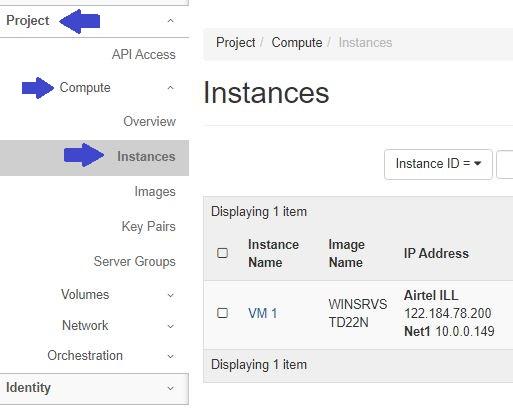
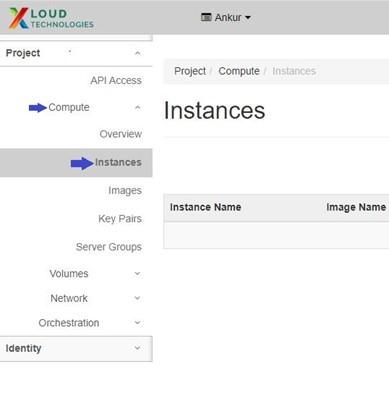
Under Project tab, open the Compute tab and click on Instances.
Step 3
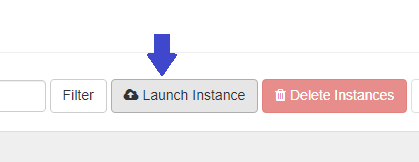
Click on "Launch Instances".
Under Details tab
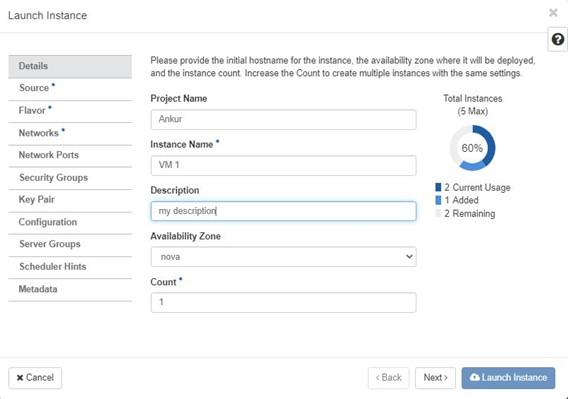
Specify Instance/VM parameters.
Instance Name: Assign a name to the virtual machine.
Description:
Count: If you want to create more than 1 instance then input desired number of instances, make sure you have ample quota to create new instances
- Switch to Source tab
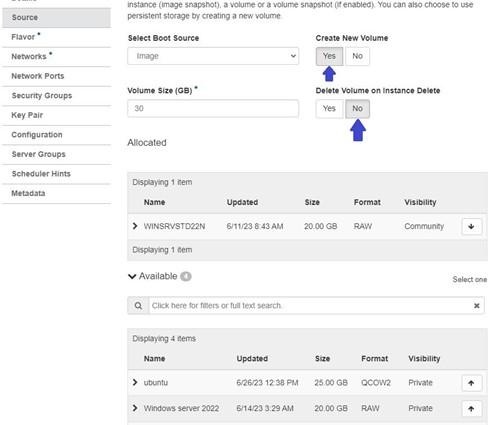
Select Boot Source: Image
In option Create New Volume
Select ‘YES’, if you select ‘No’ then no new volume will be created and OS will load in fixed size storage, due to which you will not be able to expand your OS drive when needed.
Specify the size of Volume (GiB) (This will allow user to expand OS drive dynamically after VM deployment)
Also, you have option to Delete Volume on Instance delete (You can choose this option if you want to delete the volume when you delete the VM and If you want keep volume after VM deletion you can choose “No” option)
Then, select the Operating System/image from the list.
- Switch to Flavor tab
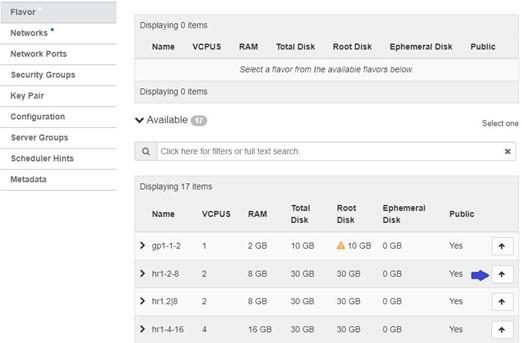
Select the preset for the VM to launch. (A flavor is a preset configuration that defines the compute & memory of an VM)
- Switch to Networks tab
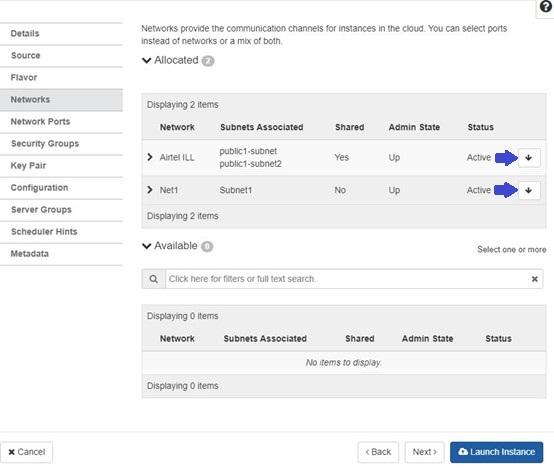
Select both ILL & Subnet. This will help you save an IP cost which is associated with creating router.
- Switch to Security Groups tab
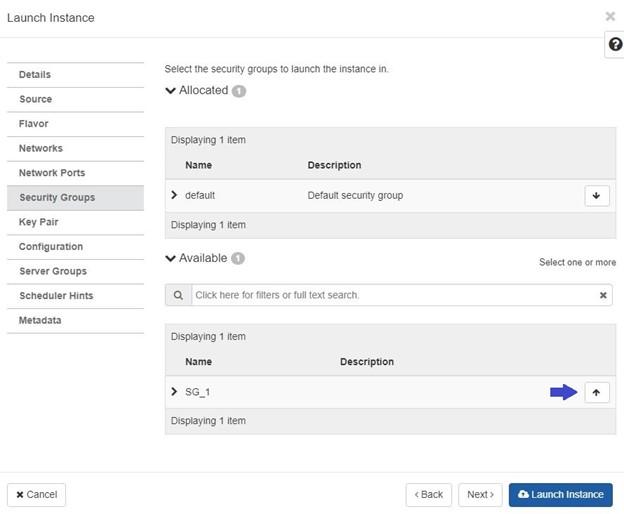
Security groups are collection of network access rules that are used to limit the types of traffic that have access to instances.
By default, the default security group is selected. You can select your security group by clicking the arrow up sign.
To create security group please refer this
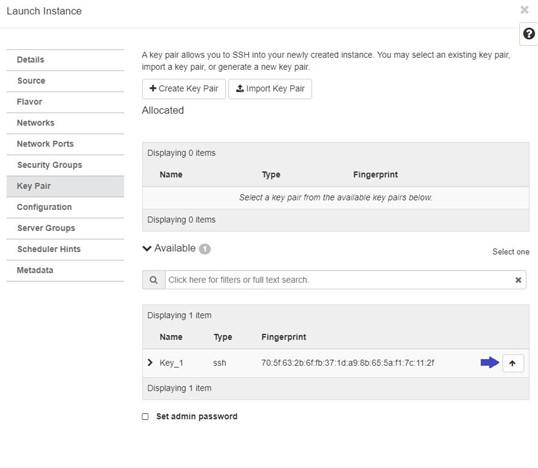
- Switch to Key Pair tab
A key pair is a combination of a public key that is used to encrypt data and a private key that is used to decrypt data. A key pair belongs to an individual user, not to a project.
You can select your key pair by clicking on the arrow up sign.
To create key please refer this
Step 5
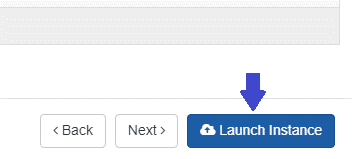
To complete the process, click on "Launch Instance" to launch the desired instance. It will be available for use and can be accessed and managed through the dashboard.
To locate your VM created go to Project tab, open the Compute tab and click on Instances.