How to Access Corrupted VM Data?
Suppose your VM is corrupted then to access the data of a corrupted VM, you can create a snapshot of the VM to capture its current state. From that snapshot, you can create a volume containing a copy of the VM's data. This volume can then be attached to another VM. By attaching the volume to the working VM, you can access the data of the corrupted VM and retrieve any necessary files or information.
Step 1
Log in to the xconnect portal. (opens in a new tab)
Step 2
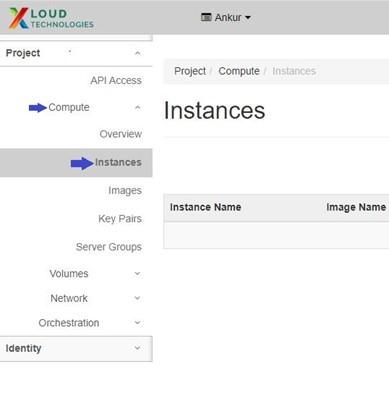
Under the Project tab, open the Compute tab and click on Instances.
Step 3
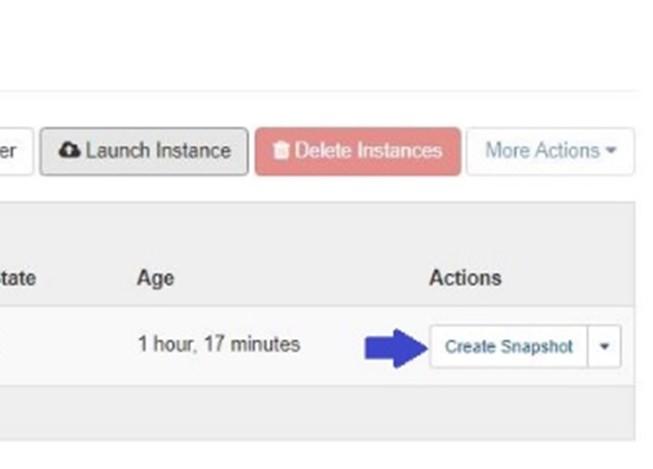
Click on the "Create Snapshot" button of the corrupted VM.
- Then specify Snapshot Name.
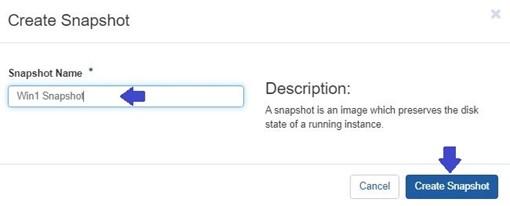
- Click on the Create Snapshot button to initiate the process of creating a snapshot for the corrupted VM.
Step 4
Go to Images under the Compute tab of Project.
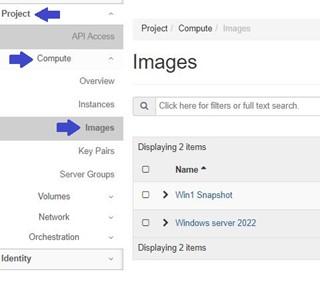
- You will find the snapshot of the VM listed.
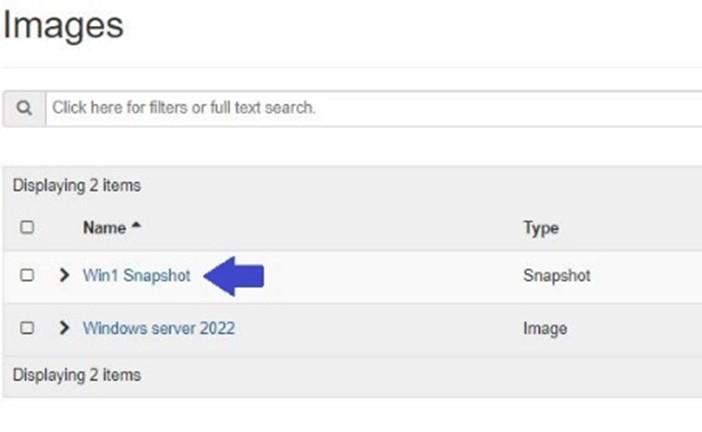
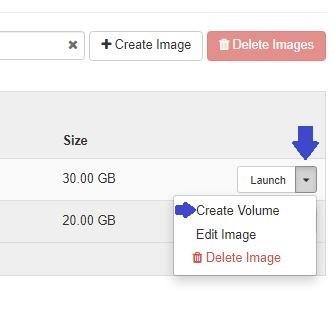
- Click on the arrow icon located next to the snapshot to access additional options and functionalities associated with the snapshot.
-
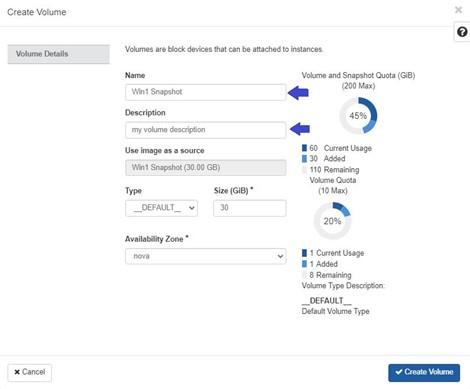
Click on the Create Volume option and specify:
Volume name : Assign a name to the volume.
Description : Optionally provide a description of the volume (e.g., my volume description).
-
To finalize the process, click on the "Create Volume" option.
Step 5
To know how to attach this volume to VM please refer to this guide