How to create Security Groups?
A security group acts as a virtual firewall for servers and other resources on a network. It is a container for security group rules which specify the network access rules.
Step 1
Log in to the xconnect portal. (opens in a new tab)
Step 2
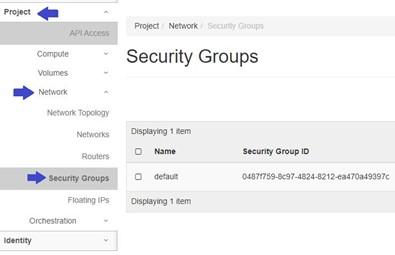
Under the Project tab, navigate to the Network tab and click on Security Groups.
Step 3
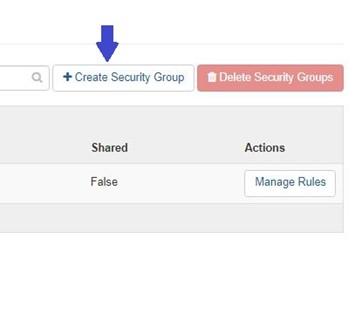
Click on "Create Security Group" button.
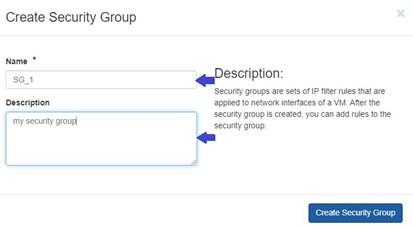
Specify the following security group parameters.
- Name: Assign a name to the Security Group.
- Description: Optionally, provide a brief description of the virtual machine.
Step 4
Click on Create Security Group.
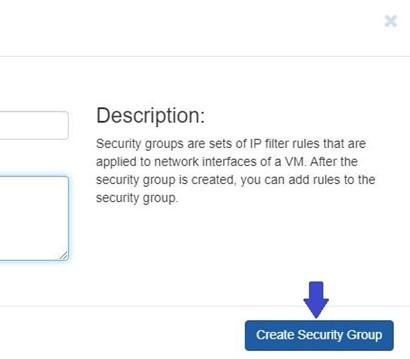
After clicking the "Create Security Group" button, the security group will be created and available for further configuration and management.
Step 5
You can view and manage your created security groups under Project tab, open the Network tab and click on Security Groups.
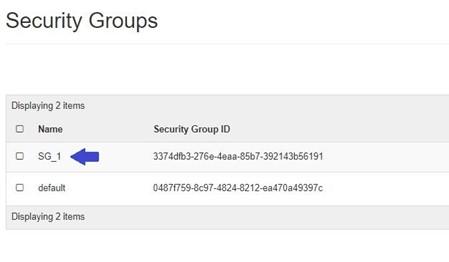
Rules define which traffic is allowed to instance assigned to the security group.
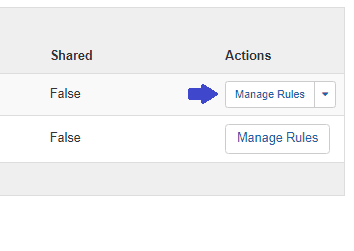
To manage the rules of the security group, click on the "Manage Rules" button of that security group.
Then click on "Add Rule" button
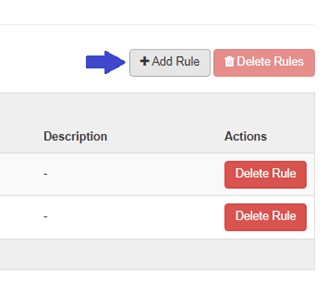
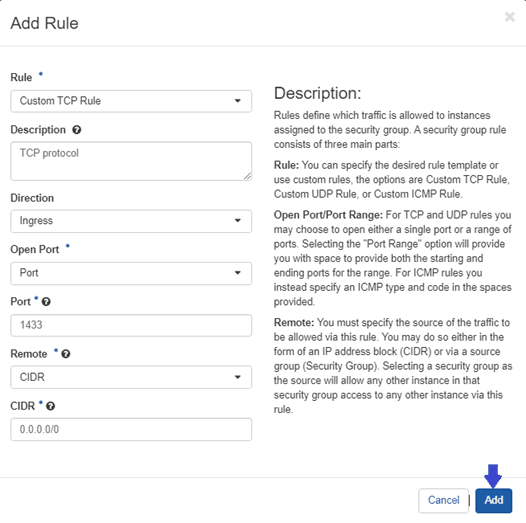
And specify following parameters:
Rule: You can specify the desired rule template or use custom rules, the options are Custom TCP Rule, Custom UDP Rule, or Custom ICMP Rule.
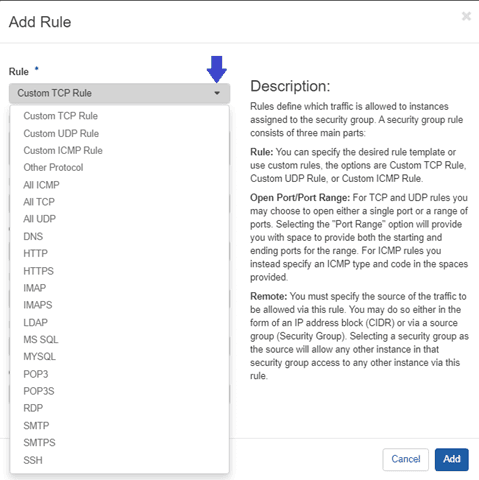
Description: Optionally, provide description for rule. This allows you to add a brief explanation or note to help identify and understand the purpose of the rule.
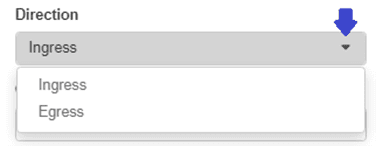
Direction: You have option to select direction of rule,
-
Ingress: This refers to incoming traffic or traffic entering your instances. Ingress rules control the inbound network connections to your instances, specifying what traffic is allowed to reach your instances from external sources.
-
Egress: This refers to outgoing traffic or traffic leaving your instances. Egress rules control the outbound network connections from your instances, determining what traffic is allowed to leave your instances and reach external destinations.
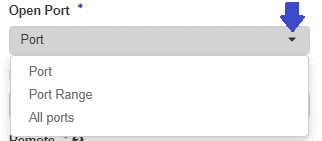
Open Port: In this option you must specify a specific port or a range of ports.
For TCP and UDP rules you may choose to open either a single port or a range of ports. Selecting the "Port Range" option will provide you with space to provide both the starting and ending ports for the range. For ICMP rules you instead specify an ICMP type and code in the spaces provided.
Remote: In this option, you are required to specify the source of the traffic that will be allowed through this rule. You have two choices for defining the source:
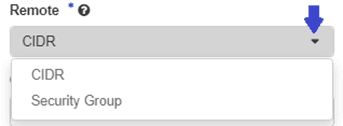
IP Address Block (CIDR): You can specify the source of the traffic using an IP address block in CIDR notation. This allows you to define a specific range of IP addresses or subnets from which the traffic is allowed.
Source Group (Security Group): Alternatively, you can select a security group as the source of the traffic. By choosing a security group, any instance that belongs to that security group will be granted access to other instances associated with this rule. This simplifies the process of allowing communication between instances within the same security group
If you have selected CIDR as the source for the traffic in your security group rule, you need to specify the specific IP address or IP address range using CIDR notation. If you set the IP address block to 0.0.0.0/0, it indicates that you are allowing traffic from all sources. This is known as the "any" or "all" IP range. By specifying this IP address block, you are permitting incoming traffic from any source IP address. It effectively opens the rule to allow communication from any location or network.
Alternatively, if you have chosen to use security groups as the source, you can select the desired security groups from the dropdown menu. This allows you to grant access to instances belonging to those selected security groups.
To complete the rule creation process, click on the "Add" button. This will finalize the configuration of the rule and add it to the list of rules within the security group.
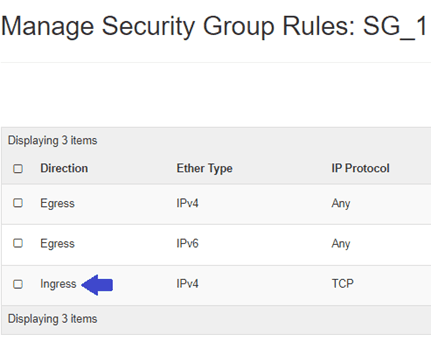
After successfully creating the rule, it will be automatically added to the list of rules within the security group