How to Create Snapshot of Volume?
A Snapshot is like taking a picture of your volume's data at a specific moment. It acts as a backup, capturing the exact state of the data on the volume at that time. The size of the snapshot is based on the amount of data present on the volume when the snapshot is created.
Step 1
Log in to the xconnect portal. (opens in a new tab)
Step 2
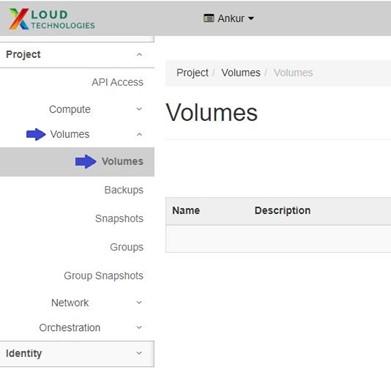
Under the Project tab, open the Volumes tab and click on Volumes.
Step 3
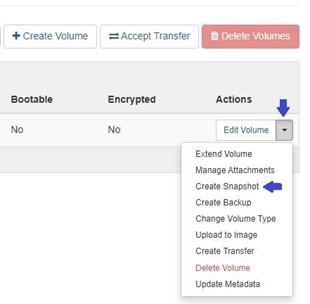
To create a snapshot, click on the "More Options" arrow for the volume you want to use as the source. This will provide additional actions specific to that volume.
Then click on Create Snapshot.
Step 4
Enter the following parameters:
Snapshot Name: Specify a name for the snapshot.
Description: Optionally, provide a brief description for the snapshot (e.g., Vol_1 Snapshot Description).
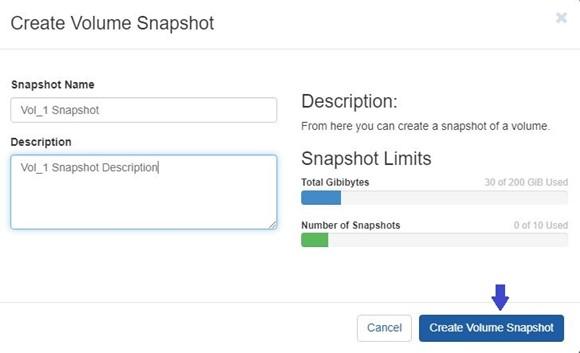
Then click on Create Volume Snapshot.
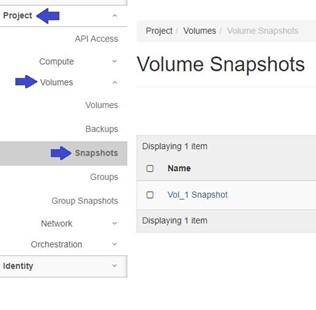
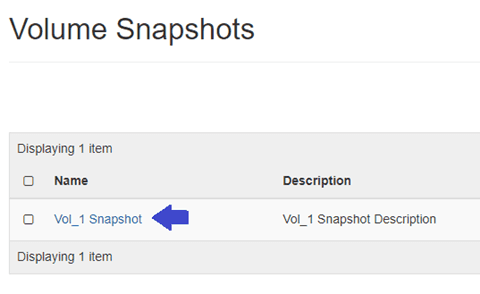
After successfully creating the snapshot, to locate the snapshot go to the Project tab, open the Volumes tab, and click on Snapshots.