How to Attach Volume to VM and Move Volume to Another VM?
Attaching Volume to VM
Attaching a volume to a virtual machine (VM) refers to the process of associating or linking a storage volume with a specific VM. This allows the VM to access and use the storage capacity provided by the attached volume.
Step 1
Log in to the xconnect portal. (opens in a new tab)
Step 2
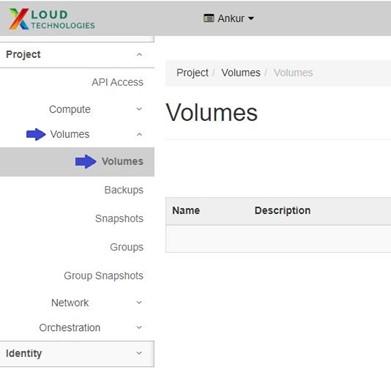
Under the Project tab, open the Volumes tab and click on Volumes.
Step 3
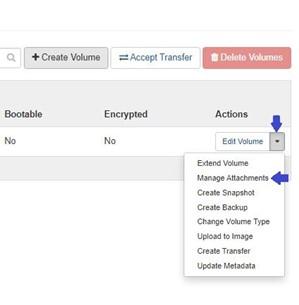
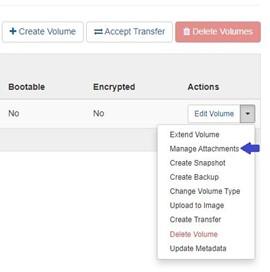
To attach a volume to a VM, click on the "More Options" arrow for the desired volume. This will reveal additional actions specific to that volume, including the option to attach it to a VM.
Click on Manage Attachments.
Step 4
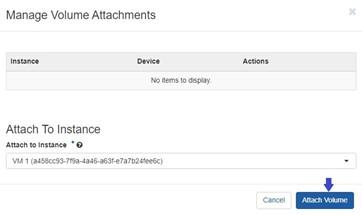
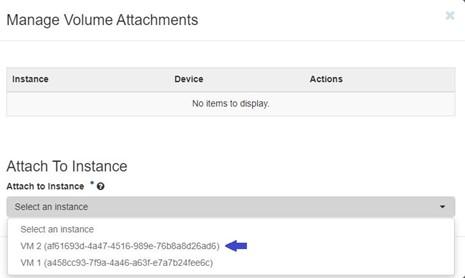
Click on the "Select an instance" option under the "Attach to instance" section. This will allow you to choose the specific instance to which you want to attach the volume.
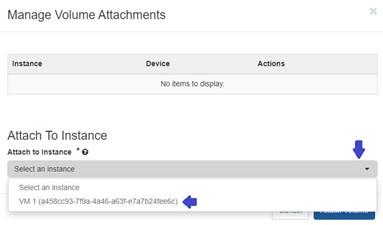
Choose the desired VM to which you want to attach the volume.
Step 5
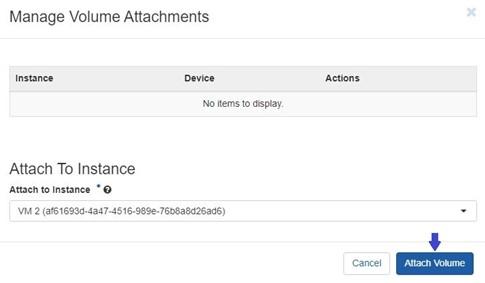
Click on the "Attach Volume" button to complete the process.
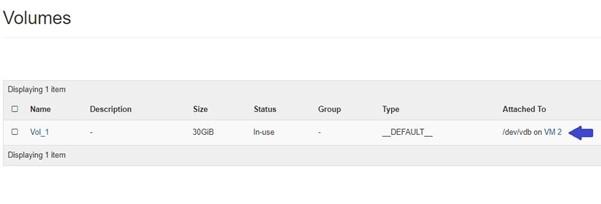
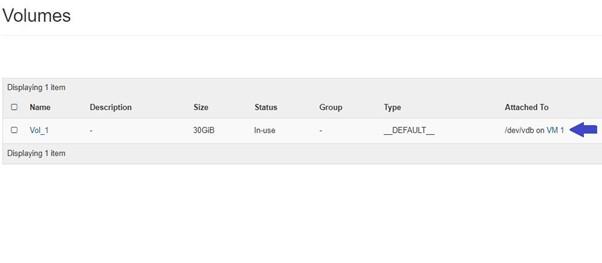
Once a volume is successfully attached to a virtual machine (VM), you will see the name of the VM listed under the "Attached To" section of the volume details.
Moving Volume from One VM to Another
Follow Step 1 to Step 3 from the previous section.
Step 4
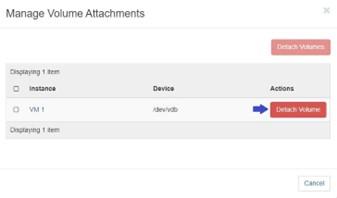
After clicking on "Manage Attachments", select the "Detach Volume" option to detach the volume from the current VM. This will initiate the process of removing the volume from the current VM, allowing you to move it to another VM in OpenStack.
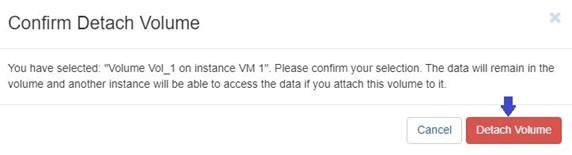
To confirm the detachment of the volume from the current VM, click on the "Detach Volume" button once again.
Step 5
Repeat Step 2 and Step 3.
Click on Manage Attachments.
Then select another VM.
Click on "Attach Volume" to attach the previously detached volume to another VM.
Once a volume is successfully attached to another VM, you will typically see the name of the VM listed under the "Attached To" section of the volume details.