How to Resize a Volume?
When you resize a volume, you're essentially making it bigger to hold more data and work more efficiently. This can be helpful when you need more storage space for your files or when you want to improve the performance of your applications.
Step 1
Log in to the xconnect portal. (opens in a new tab)
Step 2
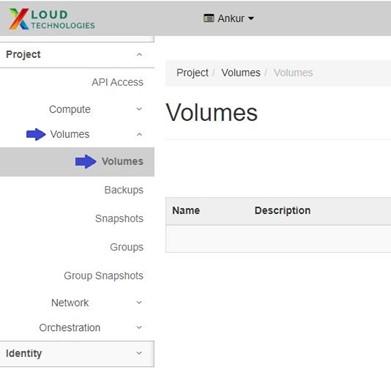
Under the Project tab, open the Volumes tab and click on Volumes.
Step 3
To resize a volume, click on the "More Options" arrow for the volume you want to resize. This will provide additional actions specific to that volume.
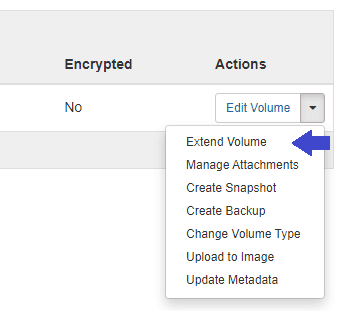
Click on Extend Volume.
Step 4
Enter the desired new size (in GiB) for the volume.
Note that the new size must be greater than the current size, as volume resizing cannot be reduced.
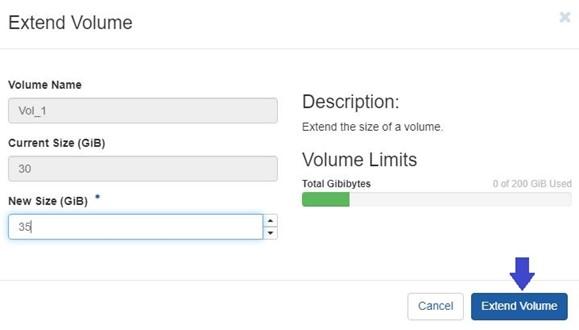
To finalize the process, click on the "Extend Volume" button.
This action will initiate the process of increasing the size of the selected volume. You can access the extended volume in your VM (if attached).
Once you have created and attached a volume to your VM, you may need to extend the volume to increase its size in the Disk management tool.